
File Library - Support
If the below does not help solve any errors you may be experiencing or if you require any support in working through any of these, please contact us.
Following recent updates to the third party feature that provides the file sharing feature, a number of users have reported technical errors when accessing their files. A commonly known issue is for the File Share library to not load at all, appearing as a black screen below the page header and error information. This is being experienced across a variety of browsers and on both desktop and mobile versions of the website.

We appreciate the frustration of not being able to access your files and are working with the providers of this feature to rectify this issue, but in the meantime the below steps may help resolve this for you.
Refresh the browser
In cases where we have managed to directly replicate this issue, refreshing the page after around 10 seconds has caused the File Library to then load, displaying all relevant folders as expected. This has been been tested on the Desktop version of the site but not the mobile site.
Access the site from a different browser
If you usually access the webpage from the same browser, we recommend trying on a different browser. When doing this, please also try the guidance above on refreshing the page after a short wait on any alternative browser. Three main categories of browser are Chromium based (Chrome, Edge, Brave), Safari (using Apple's WebKit) and Firefox (Quantum). Please try a browser in a different category where possible. If you have not logged in to RKX Miniatures on a browser before, please have your login details ready as you may need to re-enter them.
Clear browsing data/use Incognito
Cached data may cause issues such as the one shown above to occur. By using Incognito, Private browsing or equivalent, you can access the site without your browser relying on this cached data. As above, please have you login details to hand as you will need to sign in to RKX Miniatures from scratch. Please also read the guidance on refreshing the browser after a short pause when you have navigated to the File Library page.
You can also try clearing browsing data before accessing the site. General guidance for clearing only a specific website's data is available online. This may differ from browser to browser. Please get in touch if you would like any support from our team with this or if none of the above has helped resolve the issue for you.
Ensure you are logged in
If you experience the error below, please make sure you are logged in. Access to the folders is managed via your membership to the website.
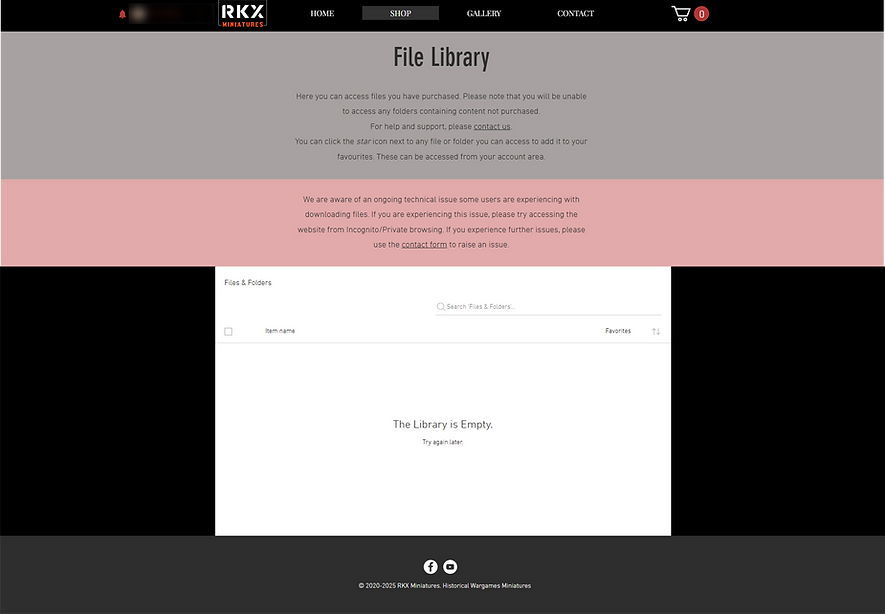
If you are logged in but are seeing this message, please try the steps above and then contact us if this does not solve the issue for you. We can review the folder access registered against your member account and try to resolve this for you at this level.